AiM Asset Management Destination

The AiM Asset Management Destination connector pushes Work Orders from the Mapped graph into AssetWorks AiM, an IWMS/CMMS platform. When Work Orders are created or updated in Mapped by another connector, an application, or manual entry, this connector automatically creates or updates the corresponding AiM work order. It supports building-scoped filtering, enum value translation from Mapped terminology to AiM's coded values, per-building default shops, and manual backfill of historical work orders.
Use Cases
- Automated work order dispatch: Work orders raised in other connected systems (BMS alerts, IoT platforms, service requests) flow into Mapped, are normalized, and are automatically pushed to AiM for execution and tracking by facilities teams.
- Bi-directional work order sync: Pair with the AiM Asset Management Source connector to enable round-trip work order management, keeping Mapped and AiM aligned.
- Building-scoped forwarding: Restrict sync to a specific set of AiM buildings so only relevant work orders are written to the customer's AiM instance.
- Backfill and historical sync: Push a batch of existing Mapped work orders to AiM by date range, useful during initial setup or data migration.
Configuration
The configuration UI is organized into sections that should be completed in order: Authentication → Buildings → Source Connectors → Enum Mappings → Building Shops → Backfill.
Auth Requirements
Enter the AiM instance URL and API credentials. Credentials are stored as vault references and are never exposed after saving.
| Field | Required | Description | Where to Find |
|---|---|---|---|
| AiM Base URL | Yes | Base URL of the AiM instance | e.g. https://your-instance.example.com. Your AiM administrator can confirm the correct host. |
| Username | Yes | AiM API username | Provided by your AiM administrator. Must have permission to create and update work orders (AePProE). |
| Password | Yes | AiM API password | Provided by your AiM administrator. |
Important: The credentials must have write access to work orders in AiM. Read-only accounts will cause work order creation to fail.
Buildings
Select the AiM buildings for Work Order syncing. Only Work Orders related to the selected buildings are pushed to AiM. The picker is a searchable multi-select populated from your AiM instance after authentication.
Each Building is identified by its AiM composite key: region code, facility ID, and building code (regionCode:facId:bldg), which the connector uses to scope work orders and to validate Shops (see Building Shops).
Note: Building selection also drives which Shops are offered in the Enum Mappings and Building Shops sections.
Source Connectors
Select which source connectors should feed Work Orders to AiM. Only Work Orders whose originating data source matches a selected source connector are considered for sync. This lets you control exactly which upstream systems flow into AiM.
Enum Mappings
Enum mapping translates Mapped work order values into the coded values AiM expects. The destination options are fetched from your AiM instance's real, in-use values (so a mapping target can't be a value AiM would reject), with a static fallback list if the fetch fails.
Six enum fields are supported, each on its own tab:
| Enum Field (Tab) | Mapped Source Property | AiM Target Field | Example |
|---|---|---|---|
| Phase Status | Work order status | Phase status | IN_PROGRESS → IN PROGRESS |
| Priority | Work order priority | Phase priority | HIGH → 2 - URGENT |
| Category | Work order job type | Order category | CORRECTIVE → CORRECTIVE |
| Type | Work order type | Order type | WORK MANAGEMENT (typically a fixed default) |
| Craft Code | Work order sector | Phase craft code | HVAC → HVAC |
| Shop | Assigned group name | Phase shop | MAIN HVAC → FO MAIN HVAC MT |
For each source value on the left, choose the matching AiM value on the right. The legend at the bottom shows how many values are mapped versus unmapped. Values matched only by fuzzy (approximate) matching require confirmation before saving.
Note on shops: AiM validates a work order's shop against the shops authorized for that work order's specific building, so the Shop dropdown is scoped to shops that are valid across your selected buildings. A shop that a building doesn't authorize is never offered.
Building Shops
AiM authorizes shops per building, so a single global shop can't be valid across buildings in different facilities. This section lets you pick a default AiM shop for each selected building, chosen from the set of shops AiM actually authorizes for that building.
| Field | Required | Description |
|---|---|---|
| Default shop | Optional | The fallback shop for a building, used when a work order's assigned group doesn't map to a shop that is valid for that building. |
The count of valid shops is shown next to each building. Leaving a building's default as — None — simply means no per-building fallback is set for it.
Backfill
Manually sync historical work orders to AiM. The backfill section becomes available once Work Order polling is enabled. Use it during initial setup or data migration to push a batch of existing Mapped Work Orders that predate the connector. You can sync by date or by Mapped Work Order Id.
Advanced Options
The following options are set on the connector configuration and are not part of the standard guided UI flow. Contact [email protected] if you need to change them.
| Option | Default | Description |
|---|---|---|
| Polling interval | 120s | How often the connector checks the Mapped graph for new or updated work orders to push to AiM. |
| Work order status | OPEN | The AiM header status applied to new work orders. This is distinct from the phase status set via Enum Mappings. |
| Request method | unset | Optional AiM phase requestMethod marker (e.g. a value identifying Mapped-originated work). Omitted unless configured in AiM. |
| Multi-tenant ID | 3 | Identifier for shared/multi-tenant AiM instances. |
Mapped Concepts
This is a destination connector: it reads work orders from the Mapped graph and writes them to AiM. It does not create graph entities, timeseries points, or heartbeats.
Source: What the Connector Reads
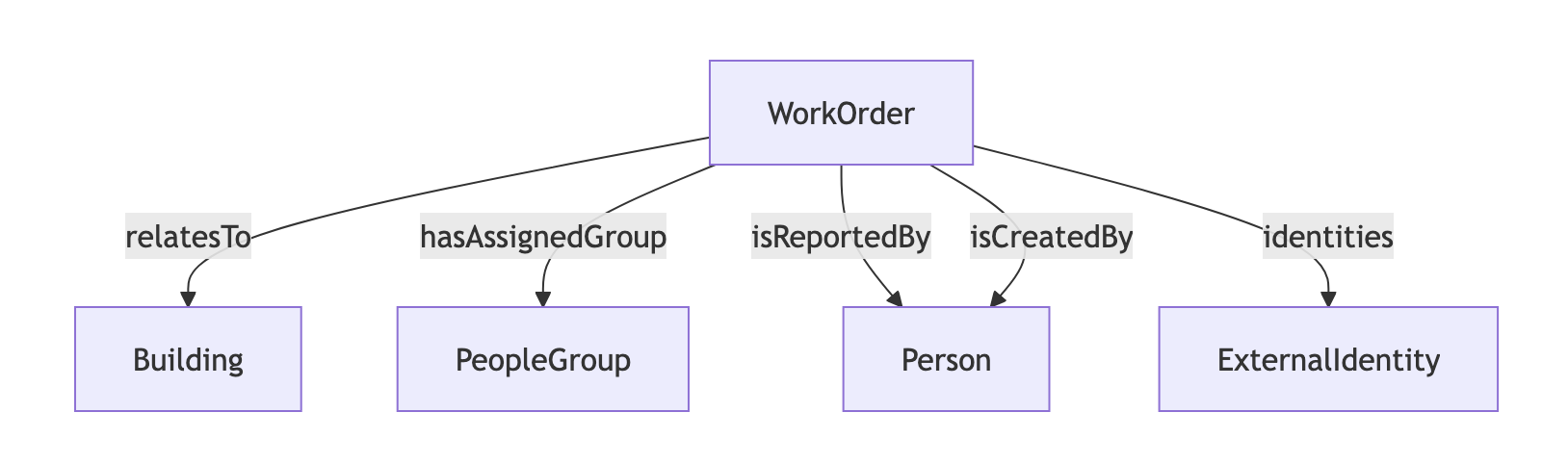
The connector queries WorkOrder entities from the Mapped graph, filtered to the configured source connectors and the buildings the Work Orders relate to. It uses these fields when building the AiM record:
Mapped WorkOrder Field | Used For |
|---|---|
jobStatus | Phase status (via Phase Status enum mapping) |
jobPriority | Phase priority (via Priority enum mapping) |
jobType | Order category (via Category enum mapping) |
sector | Craft code (via Craft Code enum mapping) |
hasAssignedGroup.name | Shop (via Shop enum mapping / per-building default) |
description / subject | Work Order description |
isReportedBy / isCreatedBy | Contact name, phone, and email |
relatesTo | Resolves the target AiM building (region/facility/building codes) |
Destination: What the Connector Writes to AiM
For each Mapped Work Order, the connector writes an AiM Work Order header (AePProE) and its phase (AePPhsE):
- New Mapped Work Orders → a new AiM proposal number is reserved and the header + phase are created.
- Existing Mapped Work Orders (already linked to an AiM proposal) → the header and phase are updated only if their fields changed.
The AiM identity (proposal number) is written back to the Mapped Work Order so subsequent updates target the same AiM record.
Syncing Requirements
- Enable Work Order polling
- Work Order must be related to a Building with an AiM identity - place map these in the AiM Source connector
jobType(Category in the Enum Mapping config) must have every value mapped or a default set.jobSubStatus(Type in the Enum Mapping config) must have a default AiM value, egWORK MANAGEMENT.hasAssignedGroup.name(Shop in the Enum Mapping config) must be authorized for the Work Order's related Building in AiM. Per-building defaults may be configured in Building Shops when one global shop mapping is not valid for every building.- Recommended mappings as they may be required by individual AiM instances: Phase Status, Priority, Craft Code, Shop
Sample Code
Because this connector writes to AiM rather than creating Graph entities, the most useful query is to inspect the source work orders it processes and the AiM identity written back to them. Replace your-connector-Id with the connected source connector's id. You can read more about querying Work Orders.
Query Work Orders by ConnectorId
{
workOrders(filter: {connectedDataSourceId: {eq: "your-connector-Id"}}) {
  id
  name
  dateCreated
  relatesTo {
    ... on Thing {
      id
      name
      exactType
    }
    ... on Building {
      id
      name
      exactType
    }
  }
}
}
Graph Diagrams