Mapped MCP
Getting Started with Mapped MCP
Mapped Model Context Protocol (MCP) gives your agentic applications seamless, easier access to the Mapped data about your buildings. This guide walks you through what it is, how to set it up, and a few things you can build with it.
What is Mapped MCP?
Mapped MCP is a Model Context Protocol server that connects your agentic applications — chat bots, scheduled agentic analysis, in-house app development — to your building data on Mapped.
Its job is to translate human language into Mapped GraphQL queries, so your agent can get the data it needs without fully understanding our GraphQL, and to help it write GraphQL more correctly when it does. By guiding the agent instead of leaving it to guess, Mapped MCP reduces hallucination and improves accuracy overall.
Mapped MCP provides six tools for GraphQL generation and execution, ontology navigation, and your organizations:
| Tool | What it does |
|---|---|
graphql_gen | Turns a natural-language request into a Mapped GraphQL query without running it. |
graphql_gen_with_results | Generates the query and runs it against the Mapped API, returning both the query and its data. |
get_all_children_types | Lists every descendant of an entity type in the Mapped ontology. |
search_entity_types | Finds entity types by the tags in their names. |
get_entity_type_details | Returns a type's description, parents, properties, and relationships. |
list_user_orgs | Lists the organizations in your Mapped account. |
Every tool runs as you: it can read, and through GraphQL mutations write, only what your Mapped account is allowed to.
Your application takes it from there. Use the returned data for whatever business logic you care about.
How to Use MCP
1. Sign up
Create a Mapped account at mapped.com. This gives you access to the Console, where the rest of the setup happens.
2. Enable the Sandbox and get familiar with the data
Before connecting anything, spend a few minutes with Mapped's read-only demo data. In the Console, turn on Sandbox Mode from the top menu bar and switch to the TenantyWorks (Sandbox) organization. You can browse the data directly in the GraphQL Explorer — no extra credentials needed.
See Enabling & Using the Sandbox for the full walkthrough. Getting a feel for the shape of the data here will make everything that follows easier.
3. Add Mapped to your AI assistant
Mapped runs a hosted MCP server at https://mcp.mapped.com/mcp, so there is nothing to install or run yourself.
Using ChatGPT or Claude? Install the Mapped plugin from the provider's directory. It includes Mapped MCP and takes a couple of clicks:
Using another client? Connect to the server directly, as below.
Other MCP clients
Clients that support remote MCP servers with OAuth (Claude Code, Cursor, VS Code, and others) connect to the same server directly. There are no headers or tokens to configure:
- Transport: streamable HTTP
- URL: https://mcp.mapped.com/mcp
Claude Code — add it from the CLI, then run /mcp, select mapped, and choose Authenticate:
claude mcp add --transport http mapped https://mcp.mapped.com/mcp
Clients with a JSON MCP config use the same shape:
{
  "mcpServers": {
    "mapped": {
      "type": "http",
      "url": "https://mcp.mapped.com/mcp"
    }
  }
}
4. Sign in with Mapped
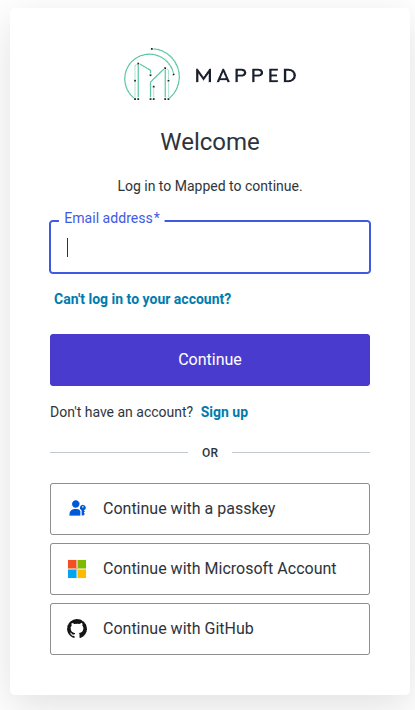
Mapped MCP authenticates with OAuth. When you add Mapped (or first use it), your client opens the Mapped login page. Sign in with your email address, a passkey, a Microsoft account or GitHub, then approve access.
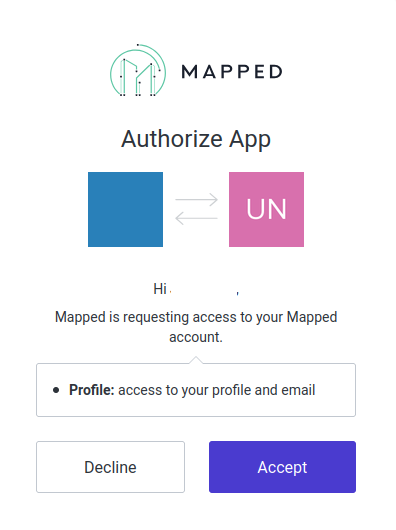
After you log in, Mapped asks you to authorize the app. It requests access to your profile and email. Select Accept to continue.
There is no API key or token to create or paste, and your client stores and refreshes the sign-in for you. To sign out, disconnect Mapped in your client's settings.
5. Start a session and ask
Once the server is connected, start a session and just ask in plain language. Your agent will call the Mapped MCP tools behind the scenes to generate the query, run it, and hand back the data. Try something like List the buildings in my organization to confirm everything is wired up.