Introduction to Connectors
What's a Connector?
Through connectors, Mapped can extract data from vendor sources or publish its knowledge graph to a third-party destination, adding more insights and capabilities. Source connectors pull in data from a third party service such as Airthings, while destination connectors send data to a third party like Azure Event Hub.
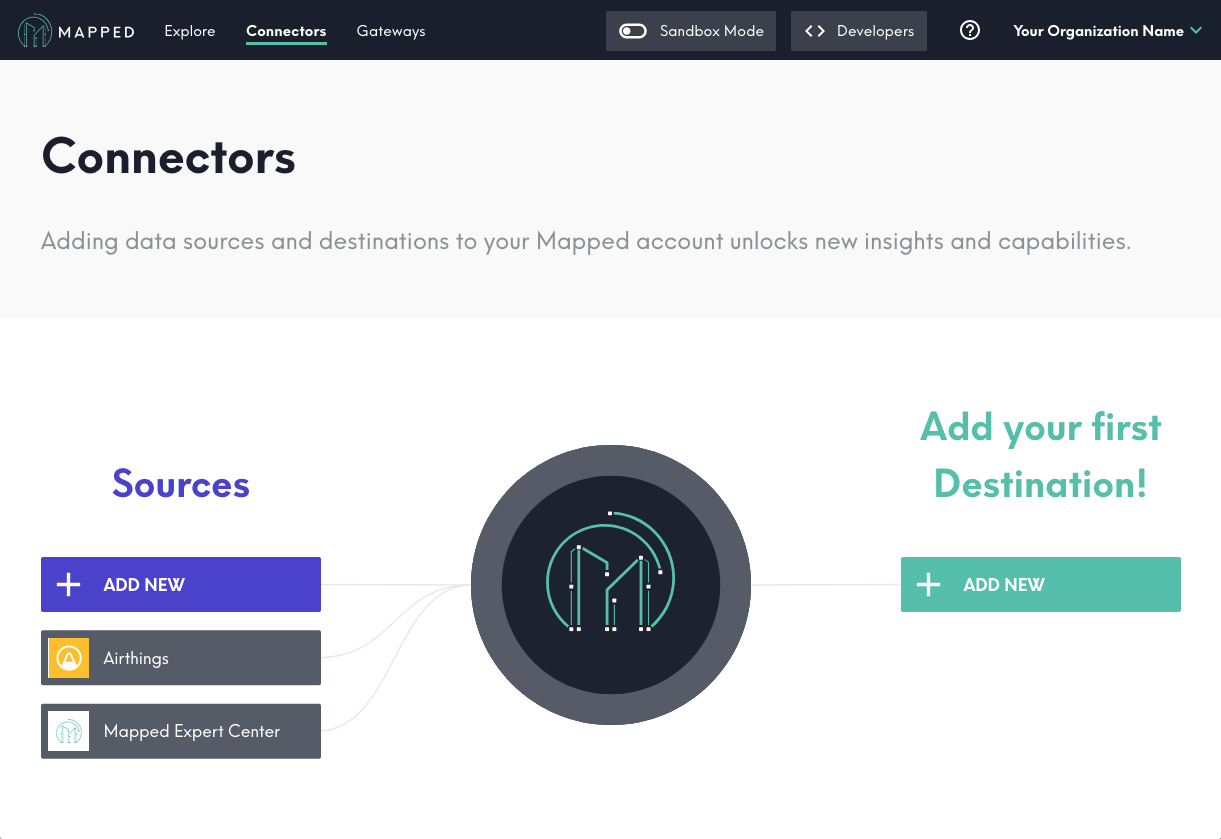
You can add, update, or remove a connector in the Mapped Console from the Connectors tab.
Add a Connector
Select Add New under Sources for source connectors, or under Destinations for destination connectors.
 A modal with a list of connectors will enable you to search for your desired connector.
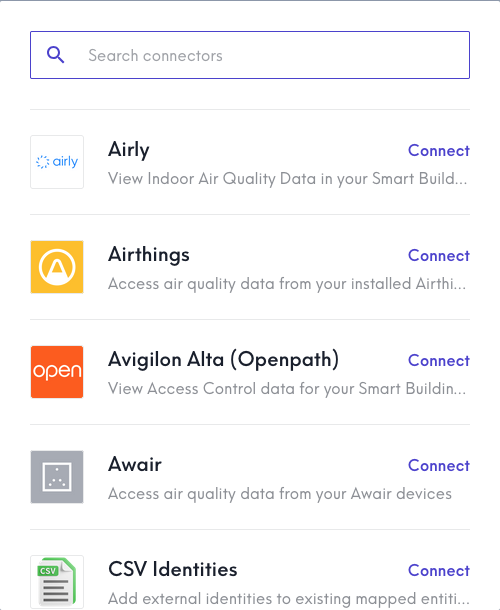
Click Connect next to your desired connector to continue. On the next modal, you can optionally rename the connector, then select Connect again to begin configuration. Select the Auth tab on the left hand menu to enter the credentials required for your connector, according to the Connector Guides available in these docs below this introduction.
With some types of source connectors, there may be additional tabs on the left-hand menu for configuring Mappings or Advanced Config. For assistance with these settings, reach out to Mapped Support.
Update or Remove a Connector
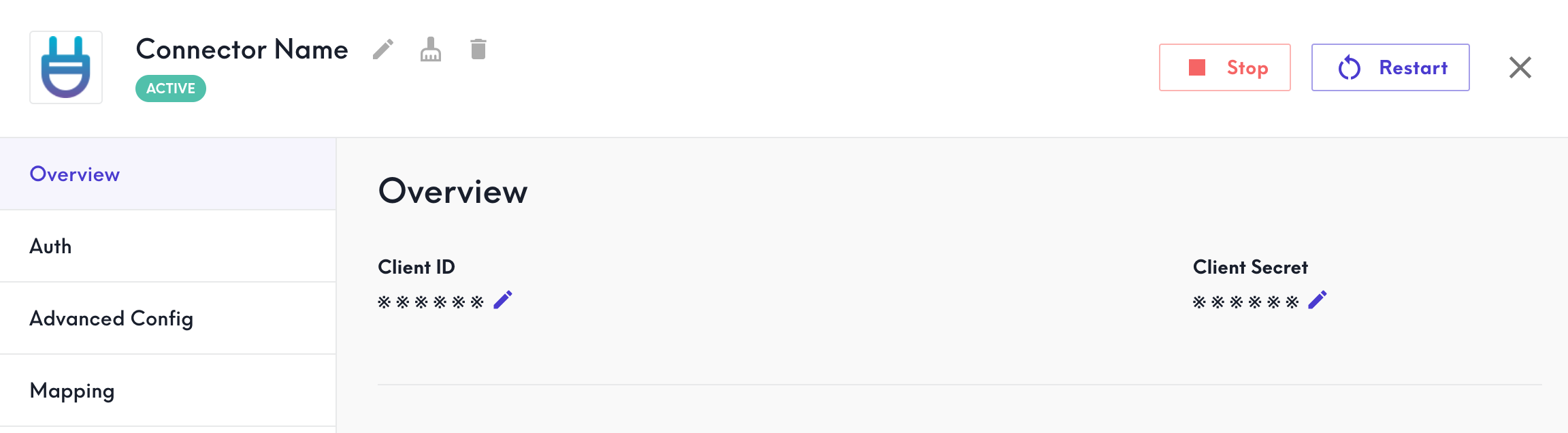
From Mapped Console Connectors, select the connector to be updated to open its configuration details in a full screen modal.
- Select the pencil icon to Rename the connector.
- Select the broom icon to Purge Data. This action does not delete the connector but will delete all data associated with it. Once confirmed, this action cannot be undone!
- Select the bin icon to Delete the connector. This will delete the connector and all data associated with it. Once confirmed, this action cannot be undone!