Filtering
Most fields in the Mapped API support filtering -- commonly by values like id, allowing you to fetch details for a specific building, device, point, or other entity.
For topic-specific examples, you can browse the relevant documentation pages, which often include filtered code samples. You can also read the API docs for information on filterable fields. This guide, however, provides a comprehensive overview of the filtering options available across the API.
Filter operators
- eq represents equals and finds exact matches
- ne represents not equals and is used to omit matches for fields that have a single possible result
- not is used to omit matches for fields with multiple possible results, like type
- in searches for a list of multiple values
- and lets you filter for multiple criteria, returning values that match all criteria
- or lets you filter for multiple criteria, returning values that match at least one criteria
- contains finds a partial string match
Filtering using a single criteria
At the top level of each field that supports filtering, filter will be an available field to select, i.e.
sites(filter: {
After filter, you'll have a list of criteria to select from. id will be the most common, so let's demonstrate that one:
sites(filter: {id: {
Now you'll have a few operators to work with; since we want to use a single criteria, in this case the id, we'll use eq which represents "equals":
sites(filter: {id: {eq: "SITE44nUdjjbqSX1sEXuwEWucr"}})
That string says, essentially, "all the data that follows from this point on is from this site and this site only". A complete example using that filter and grabbing some data would look like this:
{
  sites(filter: {id: {eq: "SITE44nUdjjbqSX1sEXuwEWucr"}}) {
    things {
      name
      type
    }
  }
}
That code sample will return all the things located in that particular site and nowhere else.
Stacking filters
You can also stack filters, if the field supports it. Building off the previous example, we filtered down to a single site via the id and returned all the things located at that site. What if we didn't want all the things, but only a specific type of thing located at that site? We can stack the filters like so to get what we're looking for:
{
  sites(filter: {id: {eq: "SITE44nUdjjbqSX1sEXuwEWucr"}}) {
    things(filter: {type: {eq: "Variable_Air_Volume_Box"}}) {
      name
      type
    }
  }
}
Filtering for multiple matches
If you want to find all the results that potentially match any of the defined criteria, you'll want to use in. This is an operator like eq, where it follows the criteria value, but it looks for any value contained inside a defined set. In the following example, we're going to look for all things that are either a Damper or VAV at the site:
{
	sites(filter: { id: { eq: "SITE44nUdjjbqSX1sEXuwEWucr" } }) {
		things(filter: { type: { in: ["Damper", "VAV"] } }) {
			id
			name
			type
		}
	}
}
Filtering to omit matches
Instead of looking for results that match a set of conditions, you may want to omit results that matched the criteria. For that, you would use either the not operator or the ne operator. You would use not for anything that is an array, like type. For options that have a single result possibility, you would use ne. So if you wanted a list of all the things at a particular site, but wanted to exclude anything related to HVAC, you would do something like this:
{
	sites(filter: { id: { eq: "SITE44nUdjjbqSX1sEXuwEWucr" } }) {
		things(filter: { not: { type: { eq: "HVAC_Equipment" } } }) {
			id
			name
			type
		}
	}
}
If you wanted to omit just the results that returned an exact type of Damper, however, you would do something like this:
{
	sites(filter: { id: { eq: "SITE44nUdjjbqSX1sEXuwEWucr" } }) {
		things(filter: { exactType: { ne: "Damper" } }) {
			id
			name
			type
			exactType
		}
	}
}
Filtering using multiple criteria
You can also stack the filters to get more granular control - in this case, we'll return only HVAC_Equipment but also omit Dampers from the results using and:
{
	sites(filter: { id: { eq: "SITE44nUdjjbqSX1sEXuwEWucr" } }) {
		things(
			filter: {
				type: { eq: "HVAC_Equipment" }
				and: { exactType: { ne: "Damper" } }
			}
		) {
			id
			name
			type
			exactType
		}
	}
}
Alternatively, you can use or to return results for things are are either type HVAC Equipment, or not a Heating Coil.
{
	sites(filter: { id: { eq: "SITE44nUdjjbqSX1sEXuwEWucr" } }) {
		things(
			filter: {
				type: { eq: "HVAC_Equipment" }
				or: { exactType: { ne: "Heating_Coil" } }
			}
		) {
			id
			name
			type
			exactType
		}
	}
}
Filtering by partial string match
For some fields, you can filter with contains to find a partial match. For example, we can search for things with the word "Storage" in the device name:
{
	sites(filter: { id: { eq: "SITE44nUdjjbqSX1sEXuwEWucr" } }) {
		things(filter: {name: {contains: "Storage"}}) {
			id
			name
			type
		}
	}
}
Confirming Filterable Fields in API docs
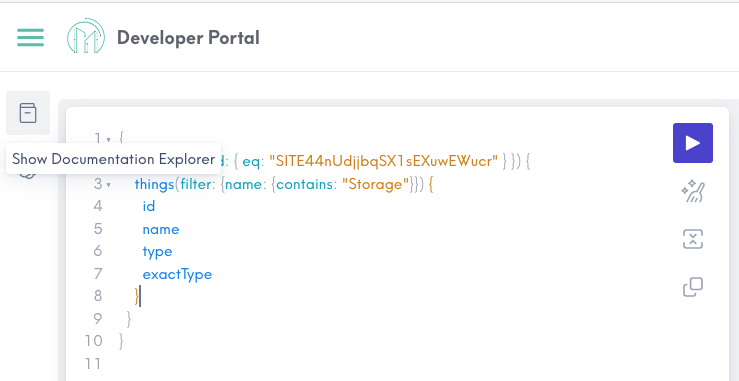
You can confirm which fields are filterable in the Document Explorer available on the left hand menu of the GraphiQL Explorer, or browse the API reference directly.
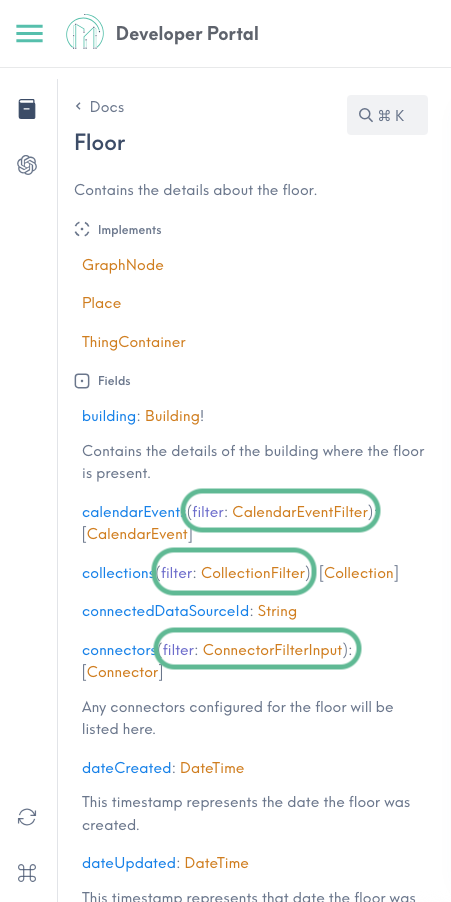
Use the search bar to find your desired entity and browse all supported fields. Filterable fields will include (filter: NameFilter). Fields with more than one possible result will show a value surrounded by brackets, such as [connectors (filter: ConnectorFilterInput): [Connector]].
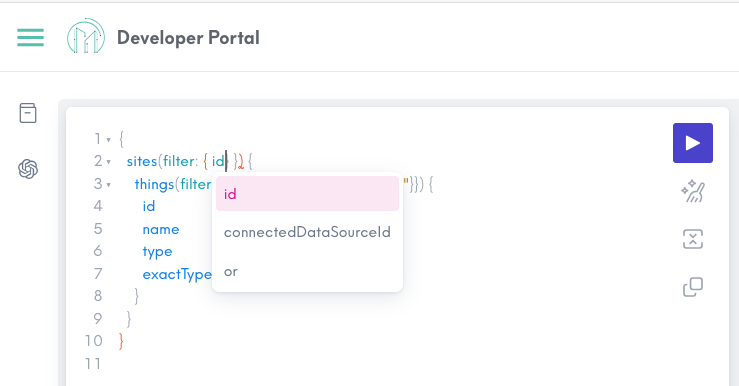
The GraphiQL Explorer will give you hints about which fields can be used when you start typing a filter as well.
We hope this guide clarifies the various filter concepts available. Review Places, Things, Points, Zones, or Relationships for use case specific filter examples.