 Docs Portal
Step-by-Step Building Onboarding Guide
This guide walks you through the complete process of onboarding a building to Expert Center, from initial access to final push.
Prerequisites
Before starting the onboarding process, you'll need:
- Access to an Organization's Console. You can create a Mapped account if you haven't already. Contact [email protected] if you need assistance with access to your Organization.
- Connectors deployed and data ingested
- Understanding of the building's systems and equipment
- Allocated time for the process (typically 3-5 days)
Getting Started
Step 1: Access the Expert Center
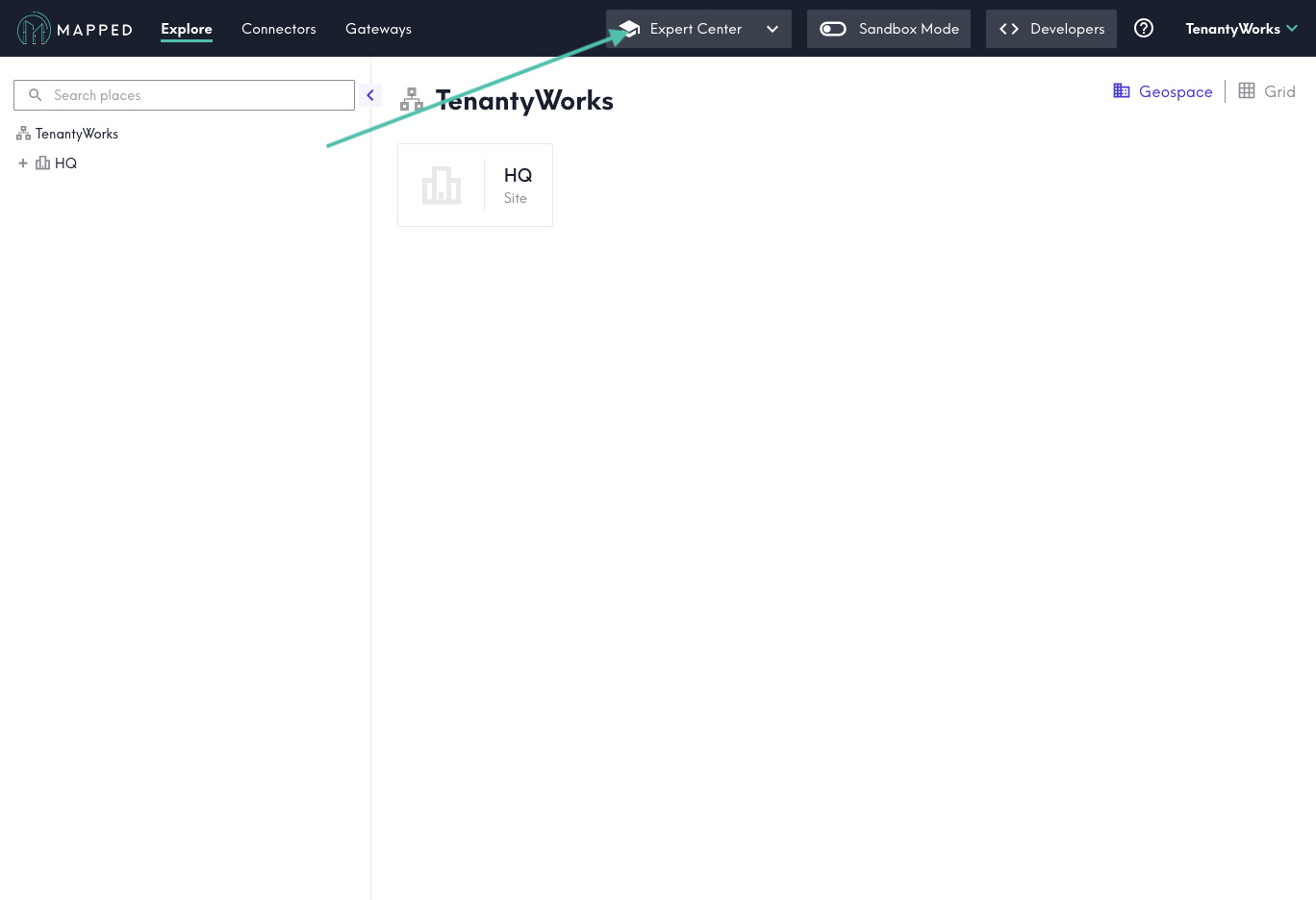
Located in the header of an Organization's Console, select Expert Center button. This will redirect you to the Expert Center's organization page.
Step 2: Pull buildings into Expert Center
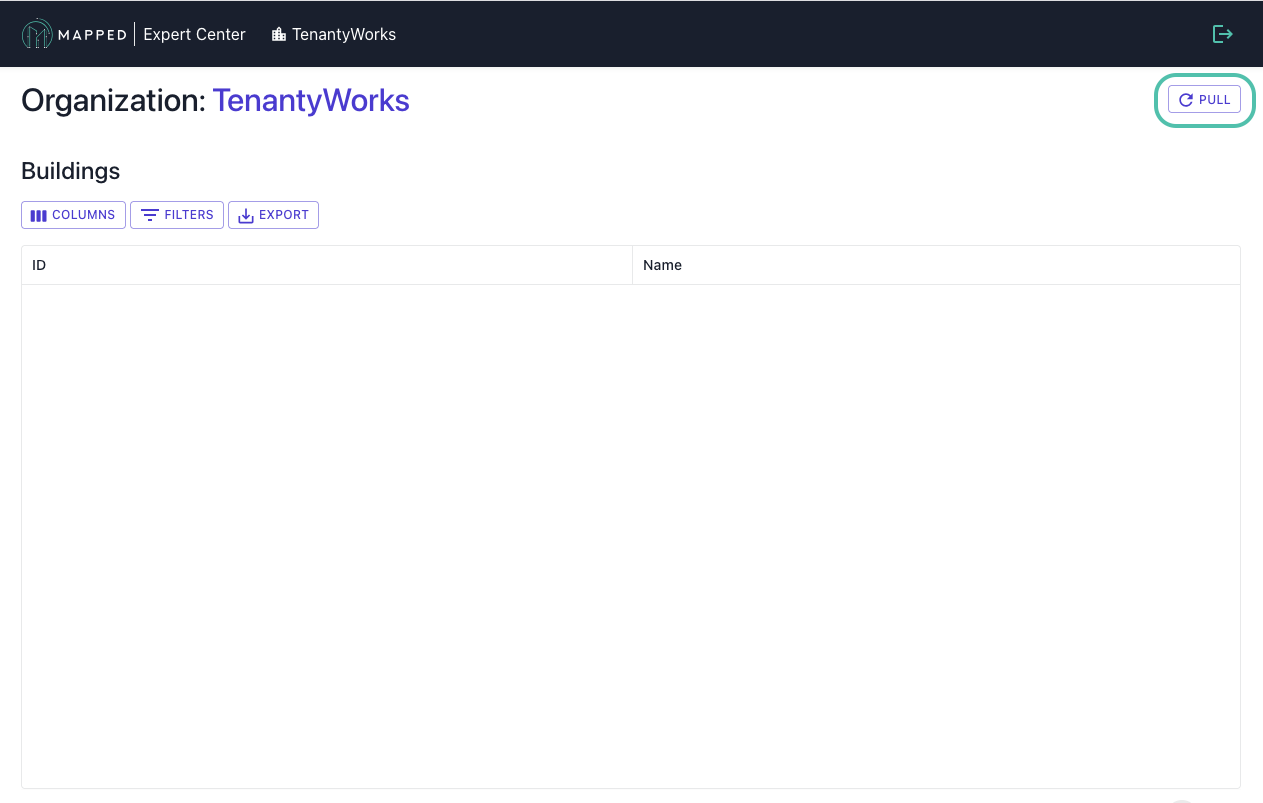
From the Organization Overview, if the list of buildings is empty, select PULL to ingest data from an organization's knowledge graph into Expert Center. This imports Source Entities - raw, unclassified data from your connectors.
📄 Read more on how to Pull | [Understanding Entities][22]
Step 3: Select a Building
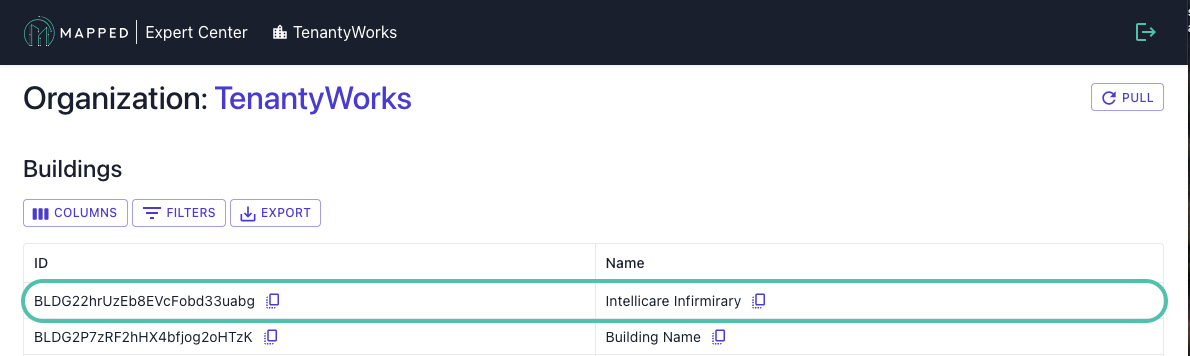
From the Organization Overview, select a building from within the Buildings table by clicking anywhere in a building's row.
Step 4: Select a Connector
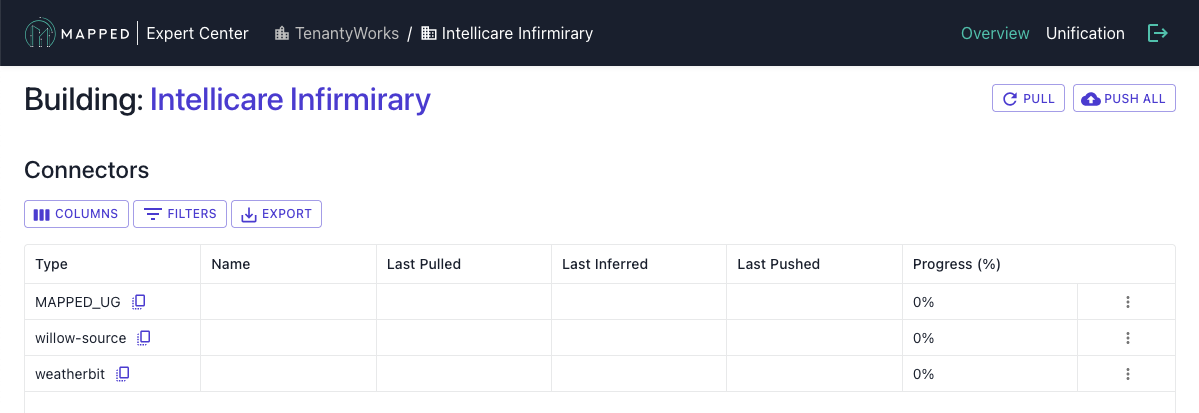
From the Building Overview, select a connector from Connectors table by clicking anywhere in a connector's row (most common: Mapped UG / CSV).
Don't see the connector you're looking for? Try running PULL.
Labeling Process
Step 5: Familiarize
Initially, processing has not been run and all Entities are Unprocessed. We recommend familiarizing yourself with Entities within the Queue to prioritize the queue and develop an understanding which patterns should be prioritized.
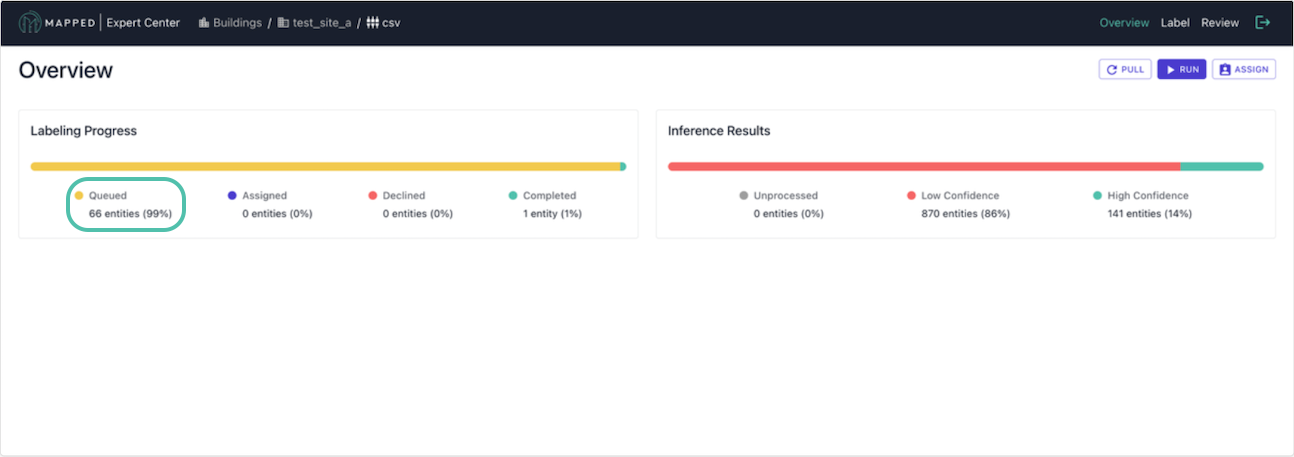
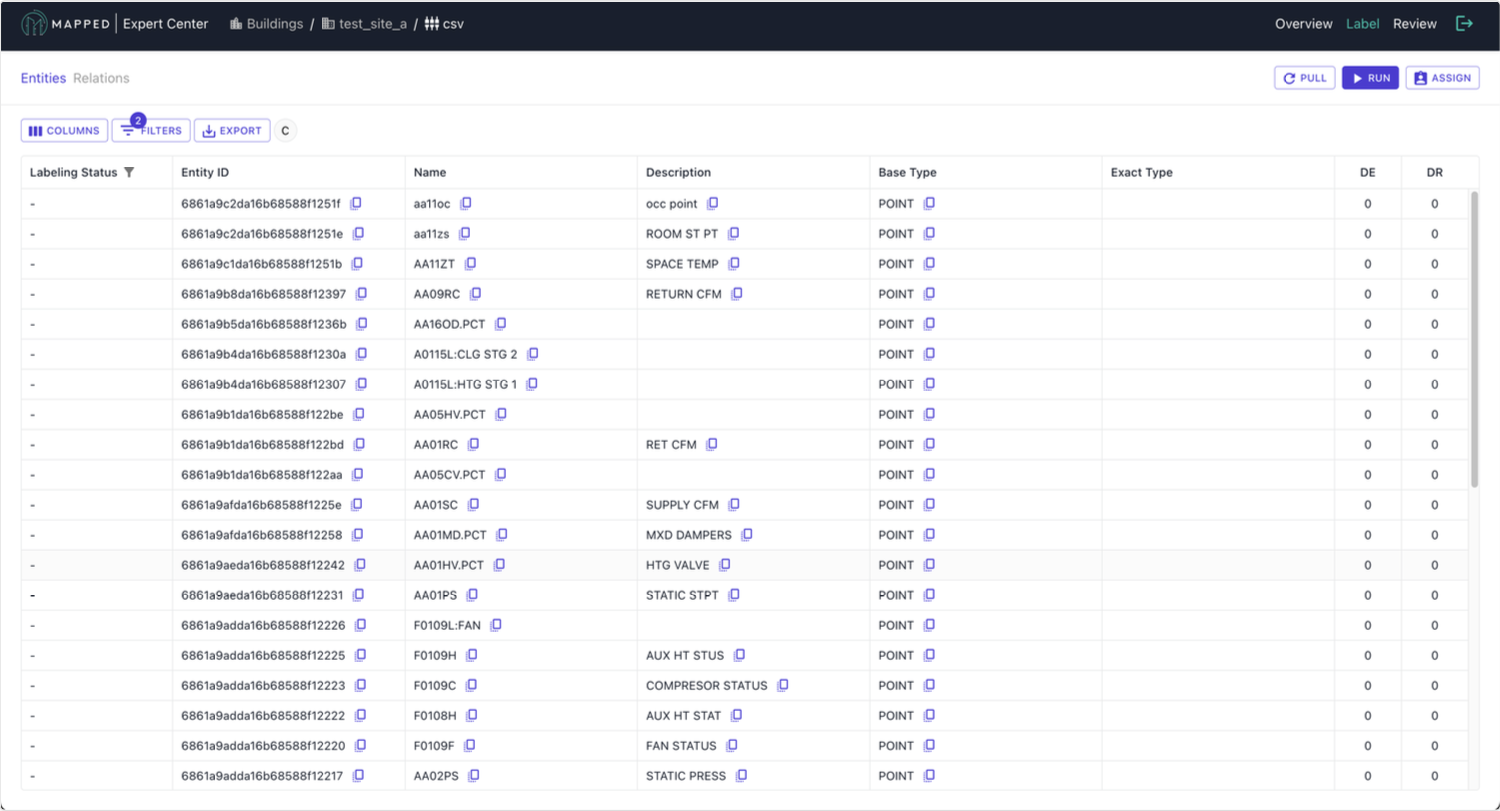
From the Connector Overview, select Queued from the Labeling Progress bar. This will navigate to the Label View > Entities tab, where you can identify textual patterns in name and description to determine which patterns should be prioritized for assignment.
📄 Read more on the labeling workflow
Step 6: Assign
From anywhere within a Connector, select Assign, then specify a labeler's email, max quantity, base type (e.g. Point), and Text Pattern (optional). Repeat assignment for your entire team.
📄 Read more on assigning labeling tasks
Step 7: Label
In the Label Interface > Entities tab, label assigned entities. When labeling entities, you're creating Labeled Source Entities that contain:
- Entity Type: Classification of what the entity represents (e.g., "Zone_Air_Temperature_Sensor")
- Derived Entities: New entities extracted from patterns (e.g., "VAV-101" from "VAV-101.ZNT")
- Derived Relations: Relationships like "VAV-101 hasPoint SELF"
These labeled examples train the AI model for automatic processing.
📄 Read more on labeling entities
Model Processing
Step 8: Run processing
After initial assignments are completed, it's time to run processing. This will take anywhere from 30-90 minutes depending on the volume. Monitor Jobs table to verify processing has successfully completed.
Processing creates Inferred Source Entities by:
- Learning patterns from your labeled examples
- Automatically classifying remaining Source Entities
- Generating Inferred Derived Entities and Relations
- Providing confidence scores for each prediction
📄 Read more on how to run processing
Review and Validation
Step 9: Navigate to Review
From the Connector Overview page, select status from Inference Results progress bar to view specific processing status, or select Review from header to view all processed results.
📄 Read more about the Review stage
Step 10: Review Derived Entities
From the Review Page > Derived Entities tab, review Derived Entities first:
- By default, all Derived Entities are Unspecified
- All Derived Entities must be Approved or Declined
- Approve:
- Implies Derived Entity's value, type, and relationships are correct
- Decline:
- Implies Derived Entity's value, type, or relationships are incorrect
- Implies all Source Entities that refer to the Derived Entity are incorrect
- This is the most effective way to review inference results to eliminate large amounts of errors
Once all Derived Entities are reviewed, proceed to Source Entity review.
Note: If you declined any Derived Entities, you may need to return to the Labeling step to address the declined Source Entities before proceeding.
Step 11: Review Inferred Source Entities
From the Review Page > Source Entities tab, review Inferred Source Entities to:
- Approve and Lock: Confirm correct inferences to prevent future changes
- Decline: Send incorrect inferences back to the labeling queue to guide improvement efforts
Note: Low confidence entities are automatically queued for labeling, but can still be approved if correct.
Important: If you declined any Source Entities, return to the Labeling step to address them before proceeding to Unification.
Unification
Step 12: Unify
- Navigate to the Unification interface
- Create Unified Entities - connector-agnostic representations of real-world equipment
- Associate Source/Derived Entities from different connectors to single Unified Entities
- Name Unified Entities to control how they appear in the final knowledge graph
Example: Merge "AHU01" from BMS and "Air Handler 1" from drawings into one Unified Entity named "AHU-01"
📄 Read more about the Unify stage
Push
Step 13: Push Enriched Data
- Verify all previous steps are complete
- Navigate to Building
- Select Push All to push all connectors and unification
📄 Read more about the Push stage
Validate
Step 14: Validate Knowledge Graph
Run GraphQL queries to ensure correct:
- Building information and structure
- Equipment classifications and relationships
- Collections and systems
- Zones and HVAC connections
- Points and data availability Review results against expectations from Expert Center