 Docs Portal
CSV Connector
The CSV Source Connector allows you to take exports from your building systems and import them into your Mapped graph via CSV file. The Connector's configuration wizard will guide you step by step, from selecting and uploading your file, to mapping the data to the correct Site, to aligning the rows in the CSV with the fields in the Mapped graph. For support documentation, review our Help Center section on the CSV connector.
Schema
The schema for the CSV Connector is as follows:
Building
- buildingAddress
- buildingRefId
- buildingName (optional)
- latitude/longitude (optional, but required if address validation is disabled)
Floor (optional)
- floorRefId (required if Floor is included)
- floorLevel (required if Floor is included)
- floorName (required if Floor is included)
Space (optional)
- spaceRefId (required if Space is included)
- spaceName (required if Space is included)
- spaceCode (required if Space is included, must be unique per spaceRefId)
- Must relate to a Floor
Zone (optional)
- zoneRefId (required if Zone is included)
- zoneName (optional)
- zoneExactType (optional, defaults to ZONE)
- Must be associated with a Building, Floor or Space
Thing (optional)
- thingRefId (required if Thing is included)
- thingName (required if Thing is included)
- Must be located based on Building, Floor or Space
- If a Zone is present, the Thing serves that Zone
Point (optional)
- pointRefId (required if Point is included)
- pointName (strongly recommended)
- pointUnit (optional)
- pointExactType (optional, defaults to POINT)
- pointValue (required if pointTimeStamp is included, must be numeric int or float)
- pointTimeStamp (required if pointValue is included)
- Must be associated with a Thing, Zone, Space, Floor, or Building
Business Rules
There are a number of rules that control the process of importing data via a CSV file:
Address Validation
Building address is always required, so the connector can either map to an existing building or create a new one. The building address is validated by an address validation service that automatically finds the latitude and longitude based on the address. If the address validation cannot find a longitude and latitude with the provided address, the import may fail at this step or automatically change the address to a valid one. Read about disabling address validation.
RefIds
Each entity requires a RefId. The RefId should be unique within the scope of the imported sheet.
The RefId will be added to the entity as an External Identity value. In the Advanced Config, if you select to add an org-scoped identities to a Building, Floor, Space, Zone, Thing or Point, keep in mind that these entities will merge with any other entity that shares that same identity scoped to the org-level. Read more on Identities at Mapped.
Hierarchy
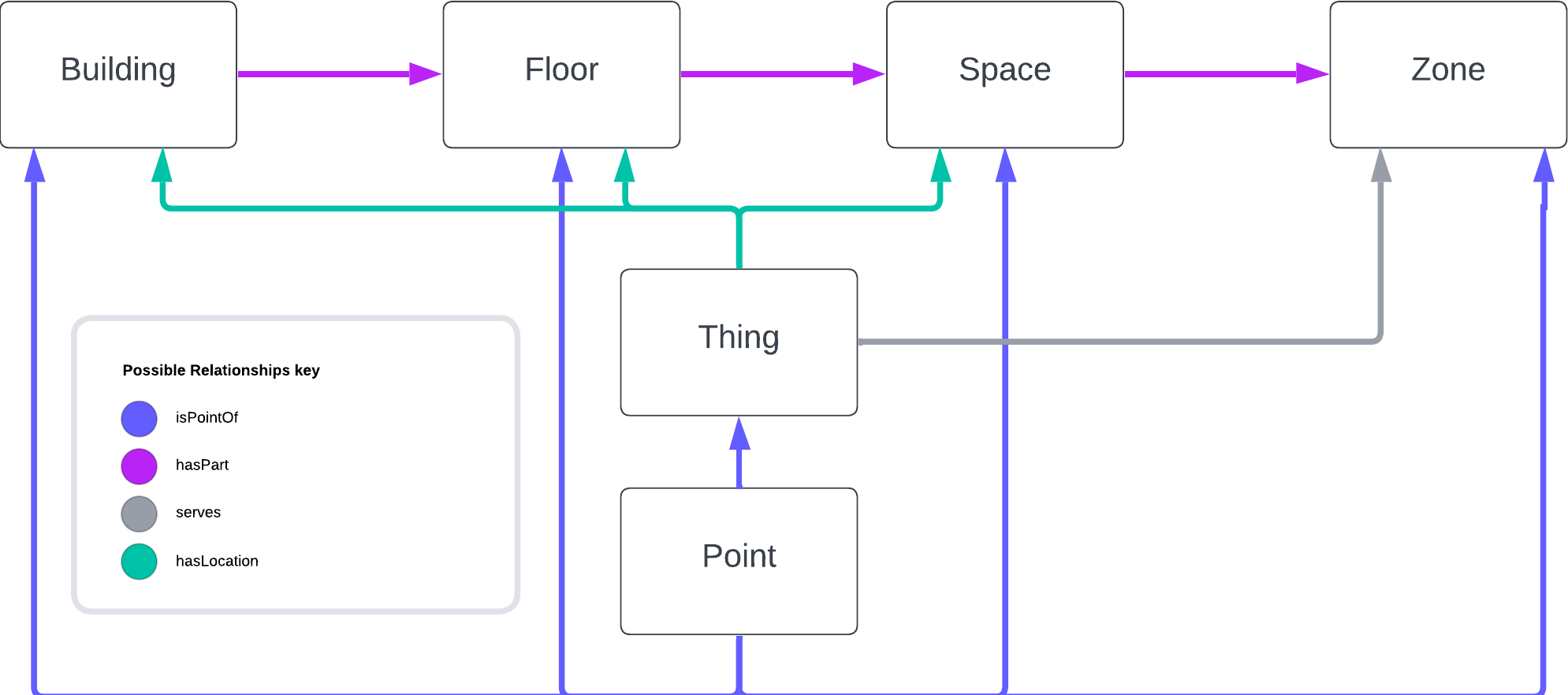
The data follows a hierarchy of requirements: Point requires a Thing, Thing requires a Space or a Floor, Space requires a Floor.
Relationships
- A Thing can only have one location, so it can only be mapped to one Space, one Floor, or one Building.
- A Space can only be mapped to one Floor.
- A Floor cannot be mapped to more than one Building.
Values
- A Point requires both a Point Value and a Point Timestamp, if it has either.
- Floor Level and Point Value must be a valid number; we do not currently support other types for Point Values.
Other Considerations
- Larger datasets may be cumbersome for the connector - if your CSV contains over 500 unique devices, consider breaking it up into multiple import files.
- After you submit your CSV, our system will import the data in the background. You are free to return to the Mapped Console after submission, and can see the data populate via the Explorer Grid View.
Config
Settings
On the Settings tab, select the Site to which you wish to add this data and Save.
Optionally Download Template Files to get you started, or download the previously uploaded files if you've imported to this CSV connector previously -- either the Original or the most recently Processed file.
Advanced Config
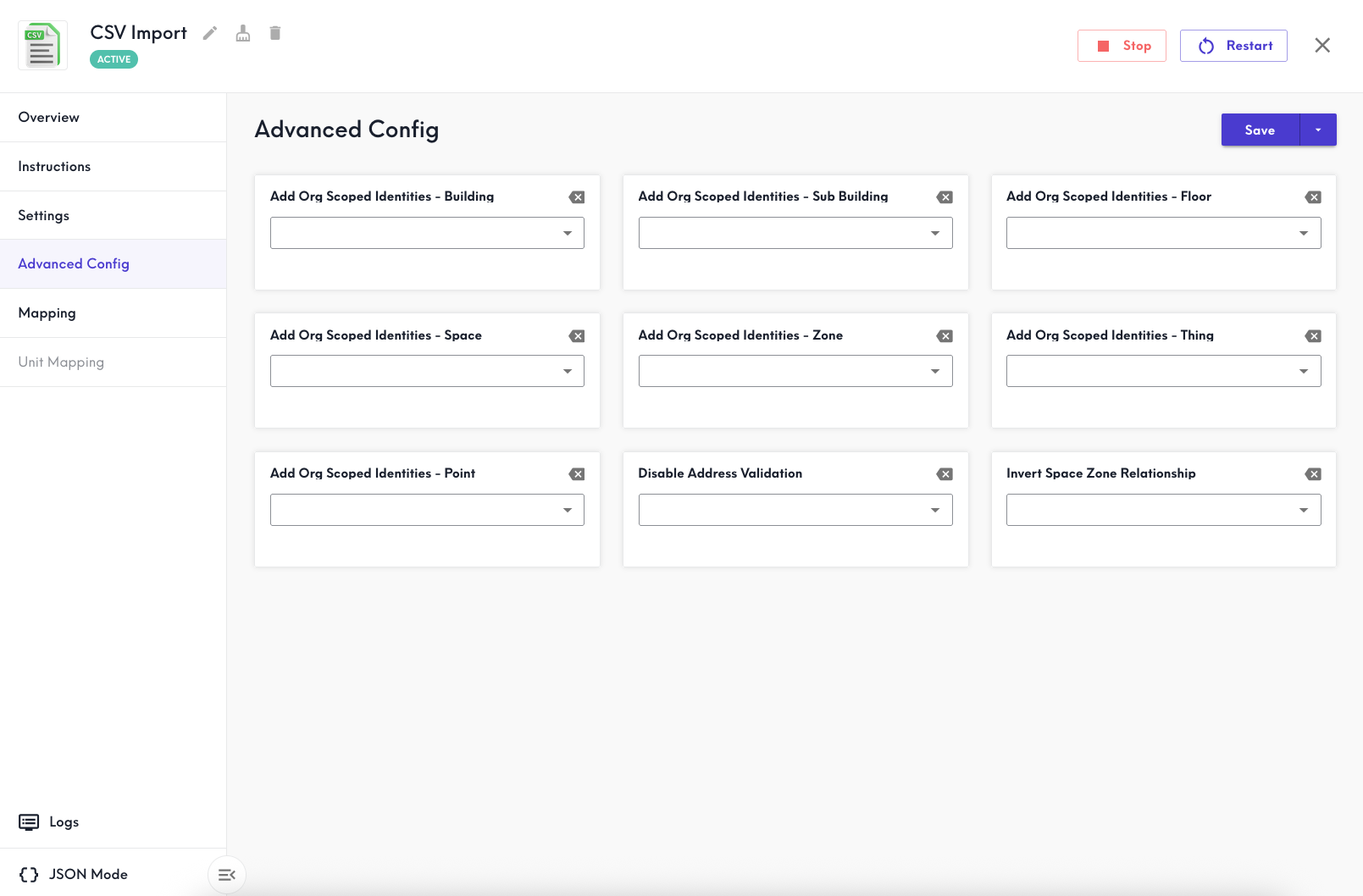
The Advanced Config tab lets you enable or disable several default options on the CSV connector.
Add Org Scoped Identities - Building
If set to true, this uses the building.RefId value to add an identity to the building scoped to the entire organization. If true, the Building will merge with any other Building that shares the same org-scoped identity. If false or not selected, this identity remains scoped to the connector only.
Add Org Scoped Identities - Floor
If set to true, this uses the floor.RefId value to add an identity to the Floor scoped to the entire organization. If true, the Floor will merge with any other Floor that shares the same org-scoped identity. If false or not selected, this identity remains scoped to the connector only.
Note: Floors merge on the floorLevel value when scoped to the same Building.
Add Org Scoped Identities - Space
If set to true, this uses the space.RefId value to add an identity to the Space scoped to the entire organization. If true, the Space will merge with any other Space that shares the same org-scoped identity. If false or not selected, this identity remains scoped to the connector only.
Note: Spaces merge on the spaceCode value when scoped to the same Floor.
Add Org Scoped Identities - Zone
If set to true, this uses the zone.RefId value to add an identity to the Zone scoped to the entire organization. If true, the Zone will merge with any other Zone that shares the same org-scoped identity. If false or not selected, this identity remains scoped to the connector only.
Add Org Scoped Identities - Thing
If set to true, this uses the thing.RefId value to add an identity to the Thing scoped to the entire organization. If true, the Thing will merge with any other Thing that shares the same org-scoped identity. If false or not selected, this identity remains scoped to the connector only.
Add Org Scoped Identities - Point
If set to true, this uses the point.RefId value to add an identity to the Point scoped to the entire organization. If true, the Point will merge with any other Point that shares the same org-scoped identity. If false or not selected, this identity remains scoped to the connector only.
Disable Address Validation
If set to true, then automatic address validation is disabled, and no changes will be made to the address value. When disabled please note the following:
- Required: Latitude and longitude values
- Strongly recommended to include in the building.Address field: Street Address (or PO Box), Locality, Region, Postal Code, and Country
Invert Space Zone Relationship
If set to true, the Space-Zone relationships created by the mapping will be Building -hasPart-> Floor -hasPart-> Zone -hasPart-> Space -hasPart-> Thing -serves-> Zone.
By default when disabled, the relationships are Building -hasPart-> Floor -hasPart-> Space -hasPart-> Zone, Thing -hasLocation->Space, and Thing -serves-> Zone.
Select Save after you have made any changes.
Mapping
In the Mapping tab, upload your CSV or XLSX file to the CSV importer wizard. If there are multiple sheets in your XLSX file, you will be prompted to select the name of the sheet you wish you upload and Continue. Next, the wizard will allow you to change or confirm the headers of your file then Continue.
Then, the next step will let you change or confirm how the columns in your file fit the wizard template. Hover over each line to preview your data and select Continue. Next, you can review and finalize the data before selecting to Import. At this point, automatic address validation occurs if not disabled.
Finally, you can review the record(s) imported and select Submit to save. At any point before selecting Submit, you may navigate away and then select Start Over when you return in order to cancel the import and submission.
Troubleshooting
Here are some of the most common issues encountered with the CSV Import. You can always contact Mapped Support for additional assistance.
- File imported but nothing changed
- Duplicated or merged entities
- RefIds do not merge with existing Mapped IDs
File imported but nothing changed
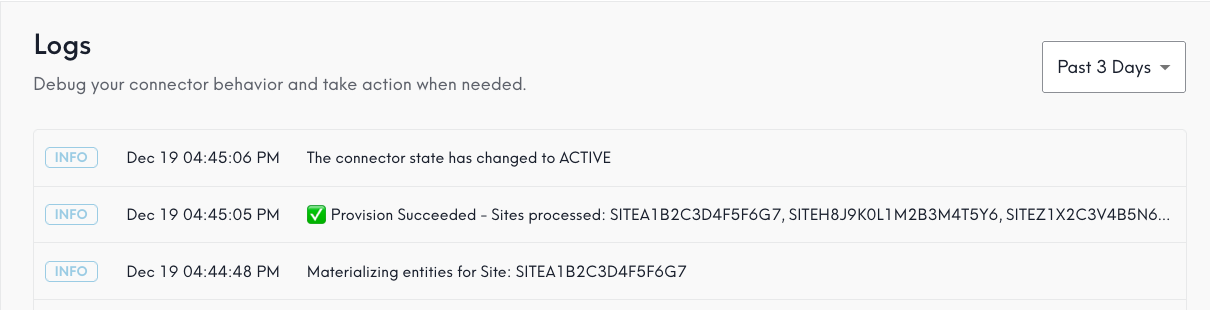
If the Mapping tab importer wizard returned no errors, but it looks like your changes didn't import, check the Logs tab in the lower left hand corner of the connector config. The most common cause is: Provision Failed - RefIds are shared with conflicting attributes or between different entities.
This error indicates that your import file used the same RefId across different entities, or assigned a single entity more than one value for an attribute that only expects one. Let's review some common examples.
Using the same RefId to refer to Floors across multiple Buildings
eg: floor.RefId "01" mapped to Buildings Innovation Hub, Research Center, and Operations Annex.
| buildingRefId | buildingName | buildingAddress | FloorRefId |
|---|---|---|---|
| 01 | Innovation Hub | ... | 01 ❌ |
| 02 | Research Center | ... | 01 ❌ |
| 03 | Operations Annex | ... | 01 ❌ |
To resolve this, each floor.RefId should be unique across each Building. There are many ways to do this, but here's just one example:
| buildingRefId | buildingName | buildingAddress | FloorRefId |
|---|---|---|---|
| 01 | Innovation Hub | ... | 01-01 ✅ |
| 02 | Research Center | ... | 02-01 ✅ |
| 03 | Operations Annex | ... | 03-01 ✅ |
This rule about conflicting RefIds applies across other entities, not just Floors. For example:
- Space RefIds can't be mapped across multiple Floors, Buildings
- Different Buildings can't share RefIds
Using the same RefId for two different Floors of two different levels
eg: floor.RefId "42-Roof" has attribute floor.Level 4 in one row and floor.Level 5 in another row.
| buildingRefId | buildingName | buildingAddress | FloorRefId | FloorLevel |
|---|---|---|---|---|
| 42 | Administration Building | ... | 42-Roof | 4 ❌ |
| 42 | Administration Building | ... | 42-Roof | 5 ❌ |
To resolve, either change the floor.Level values to match or use an alternative RefId for floor.Level 5.
| buildingRefId | buildingName | buildingAddress | FloorRefId | FloorLevel |
|---|---|---|---|---|
| 42 | Administration Building | ... | 42-Roof | 4 |
| 42 | Administration Building | ... | 42-Roof-Tower | 5 ✅ |
This rule about conflicting attributes also applies to other entities. For example:
- Things can only have one location - so multiple Thing.RefIds cannot be mapped to more than one Space, Floor, or Building.
Duplicated or merged entities
Buildings
If your import file contributes a new address for an existing Building, this will create a duplicate. Check that the address matches the existing address exactly. If you catch a mistake after the import, you can always re-import an edited file through the same CSV Import connector.
⚠️ Automatic address validation may edit the building address from what you have entered it in the CSV. ⚠️
If Buildings share the same address, they will be merged into the same Building. If the address provided is not standardized or incomplete, Mapped automatically normalizes the address. In order to avoid changing the building's address from what is entered in your file, disable address validation in the Advanced Config tab by setting Disable Address Validation to true and saving. Read more on disabling address validation.
Floors
When importing Floors, be consistent in the floor-level indexing to ensure Floors merge correctly without duplicates. A Floor named "Level 01" can have floor.Level 1 or floor.Level 0, but if it has both this will result in duplicate Floors of the same name.
Spaces
When importing Spaces, be mindful of the Space Code and related Floor. Spaces that share the same Space Code, and that are mapped to the same Floor Level in the same Building, will be merged into one Space.
Things
When importing Things, the RefId value is especially important for merging or keeping separate entities. To enable a Thing to be merged with other Things contributed from other connectors, in Advanced Config set Add Org Scoped Identities - Thing to true. The RefId you use will be added to the Thing as an org-scoped ExternalIdentity value, and it will merge with any Things sharing the same identity.
To prevent a Thing from being merged with any other Things that share the same external RefId in other connectors, leave that setting disabled (the default).
RefIds do not merge with existing Mapped IDs
Sometimes a user expects using the existing Mapped ID (eg THGA1B2C3D4F5G6H7J8K9) as the RefId will merge the changes with the existing entity that has that Mapped ID.
Actually, the RefID field adds an ExternalIdentity with the RefId as the value. If no changes are made to the Advanced Config, the identity remains scoped to this connector only and will not merge with any entities from other source. If using org-scoped identities in the Advanced Config, this entity will merge with any other entity sharing that same org-scoped identity. If there is no other entity that shares that org-scoped identity, it won't merge.
FAQs
Read in-depth articles on the CSV connector in our Help Center.
How do I check on import progress?
Check the Logs tab in the lower left hand corner of the connector config. Customer facing logs are published live in your browser's local timezone, and you can select how far back to review using the dropdown on the right hand side.
I want to import information about entities that already exist. How do I avoid duplicates?
When trying to merge Buildings, use the matching address value. When trying to merge Floors, use the matching FloorLevel value. When trying to merge Spaces, use the matching SpaceCode. When trying to merge Things or Zones, set the RefId to match the value of the target entity's org-scoped ExternalIdentity. Read more about Advanced Config settings and using org-scoped identities.
How do I make changes to a previous import?
You can import the same or new mappings by navigating the the Mappings tab and importing another file through the import wizard. You should reference mappings previously used -- particularly the RefIds -- in order to make changes to the same entities. It is not required for you to include every previous mapping, as they won't be removed unless you delete the connector.
How do I access previously imported files?
Navigate to the Settings tab and under Download Previous Uploaded File select the the Original or the most recently Processed file.
How do I cancel the import workflow?
At any point before selecting Submit in the import wizard, you may navigate away and then select Start Over when you return in order to cancel the import and submission. After the final submission, it cannot be canceled.
What happens if I delete a CSV connector?
This is a highly destructive action. All entities and mappings previously created through that connector will be deleted if you delete the connector.
Why are RefIds required? Why does it need to be unique?
This requirement ensures that even when other attributes about an entity might change in future -- like a buildingAddress, buildingName, floorName etc -- the entityId remains consistent, and it prevents undesired duplicate entities.
When would I enable org-scoped identities in the Advanced Config?
Use org-scoped External Identities if you anticipate that the same entity will be added from multiple connectors within the same organization. In particular, enabling org-scoped identities for Things/Zones in the CSV connector enables the same entity contributed by multiple connectors to merge into one entity. For example, if an HVAC Zone has already been contributed by one connector with org-scoped External Identity HVACZONE1, and you want to contribute additional data to it through the CSV connector, enable org-scoped identities for Zones in the Advanced Config and use the value HVACZONE1 in the zoneRefId column.
You can also use org-scoped External Identities for Buildings, Floors, and Spaces, but these entities will also merge based on other identities, so it may not be necessary to do so.
- Buildings merge based on the PostalAddressIdentity value
- Floors merge based on the FloorLevelIdentity value (the same floorLevel in the same Building)
- Spaces merge based on the Space Code value (within the same Floor or Building)
When would I invert the Space Zone relationship in the Advanced Config?
You would invert the Space-Zone relationship if your operational logic requires Zones to be treated as higher-level containers than Spaces. By default in the CSV connector, Spaces contain Zones, but in some workflows, Zones represent broader areas (like HVAC zones) that encompass multiple Spaces. Inverting the relationship can align the hierarchy with how your organization conceptualizes and manages these entities.
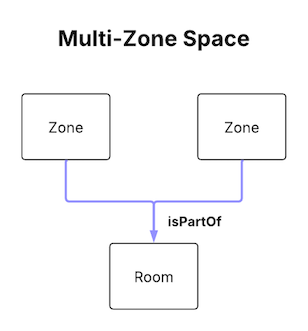
By default, the CSV connector creates Multi-Zone Spaces where a Space contains a Zone or Zones.
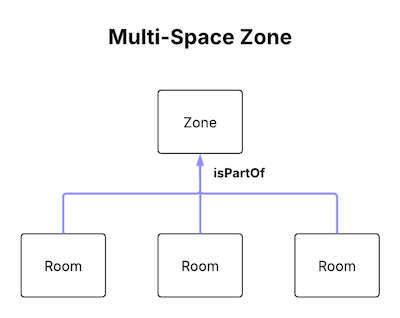
Set Invert Space Zone Relationship to true in the Advanced Config in order to create this relationship shape and direction.