 Docs Portal
Aruba Central Source Legacy

The Aruba Central Source Legacy connector integrates with Aruba Central classic deployments, which pre-date GreenLake/HPE SSO. It ingests two data streams into the Mapped platform:
- Floor Occupancy: WiFi client counts per floor from the VisualRF API, providing a proxy for real-time space utilization.
- Device Status: Online/offline state of network infrastructure (switches, access points, gateways), cross-referenced against a customer-supplied serial number whitelist. access points, switches, and gateways. Optionally, it supports real-time webhook notifications for occupancy alerts.
Use Cases
- Space utilization analytics: Track floor-level occupancy trends using WiFi client counts as a proxy, enabling data-driven space planning and real estate optimization.
- Critical infrastructure monitoring: Detect when key network devices go offline and correlate device availability with building location for faster incident response.
- Operational dashboards: Combine occupancy and device health data with other Mapped sources for unified building operations visibility.
Configuration
Auth Requirements
The connector uses the legacy Aruba Central 3-step OAuth2 authorization_code flow (username + password + client credentials). You can find these details in the Aruba Central Portal.
| Field | Required | Description | Where to Find |
|---|---|---|---|
| Base URL | Yes | Aruba Central API gateway URL | Select from dropdown — choose the gateway that matches your Aruba Central region |
| Customer ID | Yes | Aruba Central customer/tenant ID | Aruba Central → Account Home → Customer ID |
| Username | Yes | Aruba Central login email | Your Aruba Central admin account email |
| Password | Yes | Aruba Central login password | Your Aruba Central admin account password |
| Client ID | Yes | OAuth2 application client ID | Aruba Central → API Gateway → My Apps & Tokens → select your app |
| Client Secret | Yes | OAuth2 application client secret | Same location as Client ID |
| Enable Anonymization | No | Hash MAC addresses for privacy (recommended) | Toggle in auth step; defaults to Yes |
Note: The full login flow is rate-limited to 3 attempts per hour per Client ID. The connector automatically uses refresh tokens between polls to avoid hitting this limit.
Place Mappings: Occupancy
Source entities are auto-discovered from the VisualRF campus → building → floor hierarchy.
| Field | Required | Auto-Populated | Description |
|---|---|---|---|
| building.siteId | Yes | No | The Site in your organization |
| building.name | Yes | Yes | VisualRF building name |
| building.address | Yes | No | Physical address (user-entered) |
| building.refId | Yes | Yes | VisualRF building ID |
| floor.name | Yes | Yes | VisualRF floor name |
| floor.level | Yes | Yes | Numeric floor level |
| floor.refId | Yes (unique) | Yes | VisualRF floor ID |
Device Status: Serial Number Upload & Mapping **
The device status stream uses a two-part configuration:
1: Upload: A .txt file containing device serial numbers (one per line).
2: Mapping table: Each uploaded serial number appears as a row. The user assigns a building (from discovered Aruba Central monitoring sites), device type, and optional location details.
| Field | Required | Description |
|---|---|---|
| Serial Number | Yes | Pre-filled from uploaded file (read-only) |
| Device Type | Yes | SWITCH, IAP, or GATEWAY |
| Building (Site) | Yes | Select from discovered Aruba Central sites |
| Building Address | No | Physical address |
| Site ID | Yes | Auto-filled when a site is selected |
| Floor Name | No | Optional floor assignment |
| Floor Level | No | Numeric floor level |
| Space Name | No | Optional space assignment |
| Space Code | No | Optional space code |
Advanced Options
| Option | Default | Description |
|---|---|---|
| Poll Occupancy | Enabled | Enable or disable the floor occupancy polling stream |
| Poll Device Status | Enabled | Enable or disable the device status polling stream |
Mapped Concepts
Occupancy Stream: API to Mapped Entities
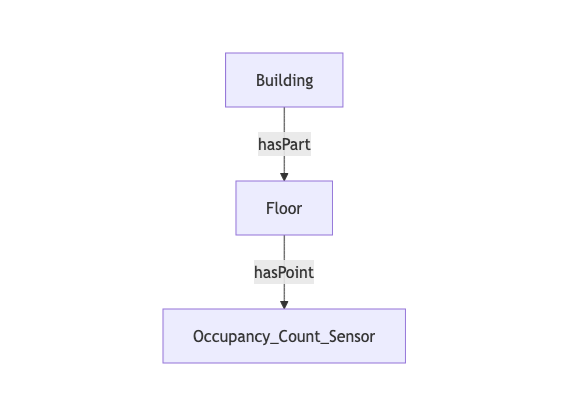
The VisualRF API hierarchy is mapped to the Mapped graph as follows:
| Aruba Central (VisualRF) | Mapped Entity | exactType | Relationship |
|---|---|---|---|
| VisualRF Building | Building | Building | Top-level place |
| VisualRF Floor | Floor | Floor | Building → hasPart → Floor |
| Floor client count | Point | Occupancy_Count_Sensor | Floor → hasPoint → Occupancy_Count_Sensor |
Each building and floor carries an external identity URN for traceability:
- Building: urn:arubacentral:legacy:visualrf:building:id:<buildingId>
- Floor: urn:arubacentral:legacy:visualrf:floor:id:<floorId>
Device Status Stream: API to Mapped Entities
Each uploaded device serial number is provisioned as a typed network device:
| Aruba Central | Mapped Entity | exactType | Relationship |
|---|---|---|---|
| Monitoring Site | Building | Building | Top-level place for the site |
| Switch (serial) | Thing | Switch | Building → isLocationOf → Switch |
| Access Point (serial) | Thing | Wireless_Access_Point | Building → isLocationOf → Wireless_Access_Point |
| Gateway (serial) | Thing | Networked_Device | Building → isLocationOf → Networked_Device |
| Device online/offline | Point | On_Off_Status | Thing → hasPoint → On_Off_Status |
Each device carries an org-scoped external identity with its serial number, and a building identity URN:
- Building: urn:arubacentral:legacy:monitoring:site:id:<siteId>
When optional floor and space information is provided, the graph includes:
- Building → hasPart → Floor → isLocationOf → Thing
- Floor → hasPart → Space → isLocationOf → Thing
API to Mapped Points
| Point | exactType | Datatype | Unit | Description |
|---|---|---|---|---|
| Occupancy Count | Connected_Devices_Count_Sensor | INT | NUM | Number of WiFi clients detected on a floor. Polled every 30 minutes from the VisualRF client_location_count field. |
| Device Status | On_Off_Status | ENUM | NUM | Online/offline status of a network device. 1 = Online, 0 = Offline. Determined by cross-referencing the device's serial number against the Aruba Central offline devices list. |
Device Status value map:
| Value | Meaning |
|---|---|
| 0 | Offline — device serial number was found in the Aruba Central offline devices list |
| 1 | Online — device serial number was NOT found in the offline devices list |
Polling interval: 30 minutes for both streams.
Sample Code
Note you'll need the connectorId of your Aruba Central Source connector. You can find this in the Mapped Console grid view under the Connectors tab.
Query all buildings and their floors with occupancy points
Request ResponseCopy1 2 3 4 5 6 7 8 9 10 11 12 13 14 15 16 17{ buildings { id name floors { id name level points(filter: {connectedDataSourceId: {eq: "your-connector-Id"}}) { id name exactType mappingKey } } } }
Query device status things with their locations and points
Request ResponseCopy1 2 3 4 5 6 7 8 9 10 11 12 13 14 15 16 17{ things(filter: {connectedDataSourceId: {eq: "your-connector-Id"}}) { id name exactType hasLocation { id name exactType } hasPoint { id name exactType } } }
Get the latest occupancy count
Request ResponseCopy1 2 3 4 5 6 7 8 9 10 11 12 13 14 15 16 17 18{ points( filter: {connectedDataSourceId: {eq: "your-connector-Id"}, and: {exactType: {eq: "Connected_Devices_Count_Sensor"}}} ) { id name datatype unit { id } series(latest: true) { timestamp value { float64Value } } } }
Get occupancy timeseries for a time range (raw values)
Request ResponseCopy1 2 3 4 5 6 7 8 9 10 11 12 13 14{ points( filter: {connectedDataSourceId: {eq: "your-connector-Id"}, and: {exactType: {eq: "Connected_Devices_Count_Sensor"}}} ) { id name series(startTime: "2025-10-04T12:00", endTime: "2025-10-05") { timestamp value { float64Value } } } }
Get the latest device status for all monitored devices
Request ResponseCopy1 2 3 4 5 6 7 8 9 10 11 12 13 14{ points( filter: {connectedDataSourceId: {eq: "CONJrzxaWrbDi7amUGzVcLRR"}, and: {exactType: {eq: "On_Off_Status"}}} ) { id name series(latest: true) { timestamp value { float64Value } } } }
Get device status history for a time range
Request ResponseCopy1 2 3 4 5 6 7 8 9 10 11 12 13 14{ points( filter: {connectedDataSourceId: {eq: "CONJrzxaWrbDi7amUGzVcLRR"}, and: {exactType: {eq: "On_Off_Status"}}} ) { id name series(startTime: "2025-10-06", endTime: "2025-10-07") { timestamp value { float64Value } } } }
Graph Diagrams
Occupancy
Device Status
![Diagram: B[Building] -->|isLocationOf| SW[Switch]. B -->|isLocationOf| AP[Wireless_Access_Point]. B -->|isLocationOf| ND[Networked_Device]. SW -->|hasPoint| OOS1[On_Off_Status]. AP -->|hasPoint| OOS2[On_Off_Status]. ND -->|hasPoint| OOS3[On_Off_Status]](https://images.contentstack.io/v3/assets/blt6b3fedbcc4e91791/blt8530a771f983feff/69cad5bc31c4fe1c323b2733/device_status.png)
Device Status (with optional Floor/Space)
![Diagram: B[Building] -->|isLocationOf| SW[Switch]. B -->|isLocationOf| AP[Wireless_Access_Point]. B -->|isLocationOf| ND[Networked_Device]. SW -->|hasPoint| OOS1[On_Off_Status]. AP -->|hasPoint| OOS2[On_Off_Status]. ND -->|hasPoint| OOS3[On_Off_Status].](https://images.contentstack.io/v3/assets/blt6b3fedbcc4e91791/blt2223690b5d9094c0/69cad5ec3a2be2ddfb6ee73f/device_status_floor_optional.png)